
1. Setting Up the Board and Stages
Start by creating a board, then arrange the columns to match how your team actually works.
Adding a Kanban Board
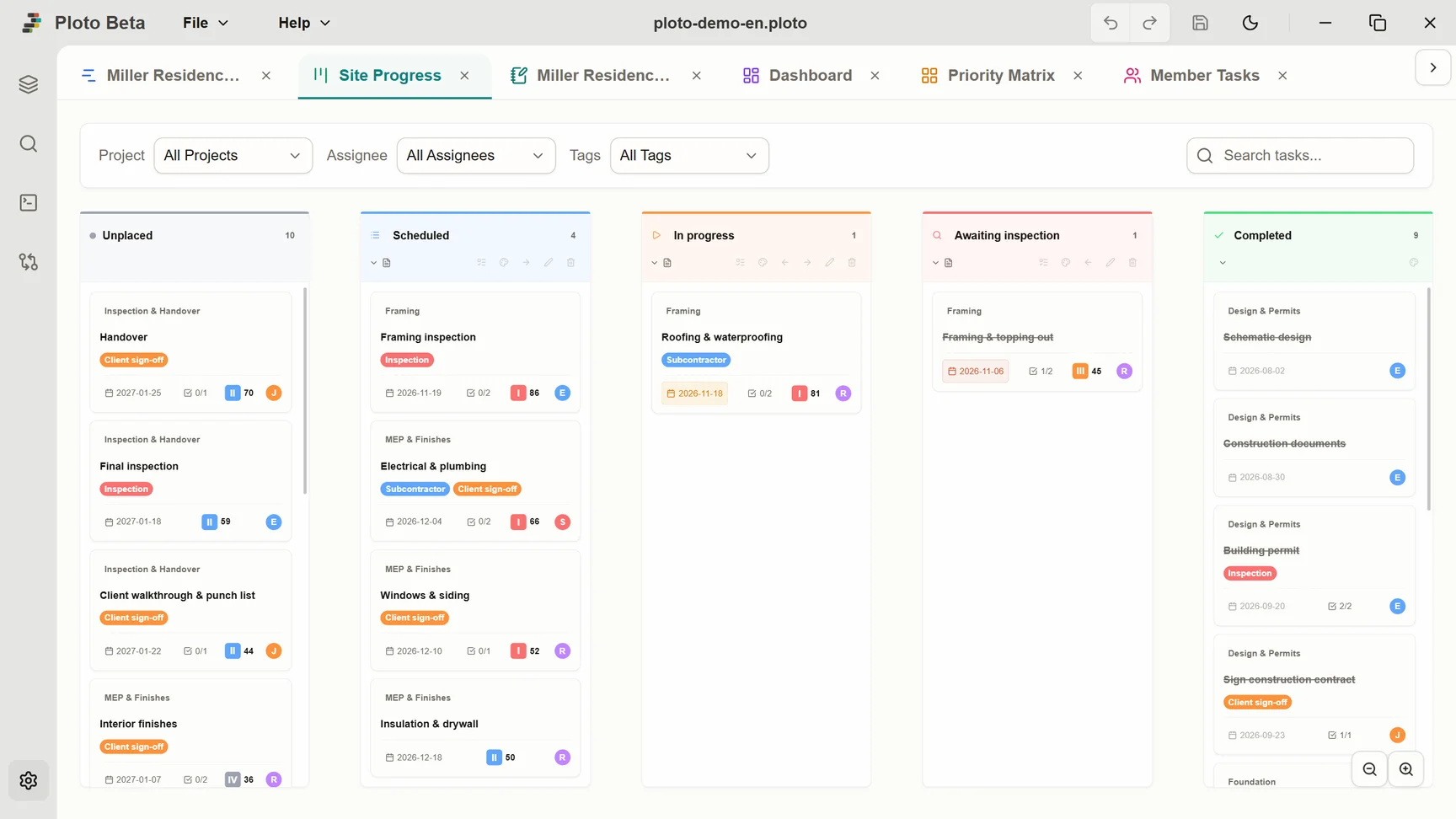
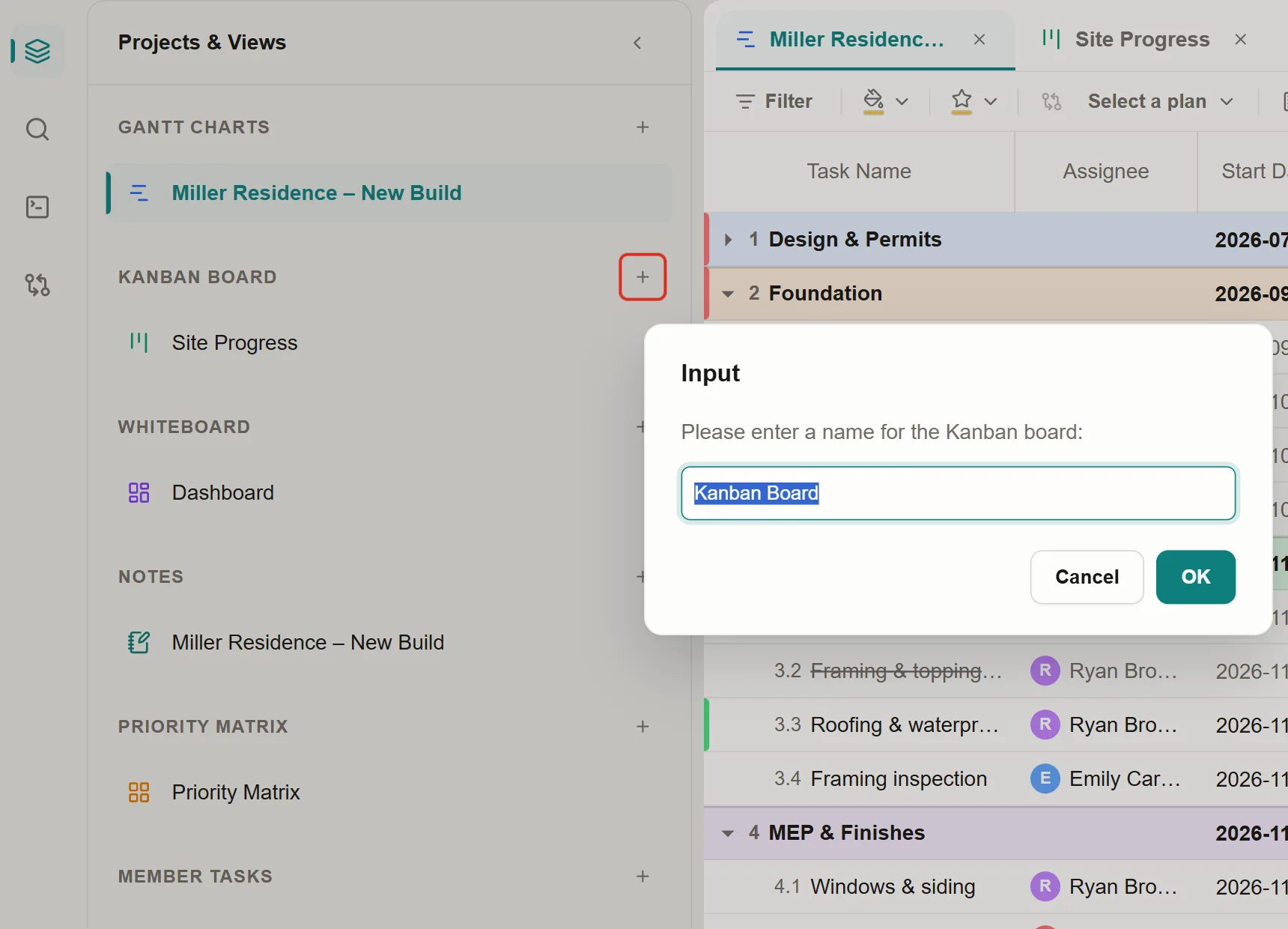
Click the 'Projects & Views' button on the left sidebar, then press the '+' button next to 'Kanban Board'. Enter a name to confirm, and a new tab appears at the top of the screen with the board open. Tasks you already created in the Gantt chart are lined up in the 'Unplaced' column, so there is no need to enter them twice.
*Creating a Kanban board is a Pro feature. Existing boards can be viewed and edited in the free version. You can also try it in the tutorial with the free version.
Creating and Editing Stage Columns
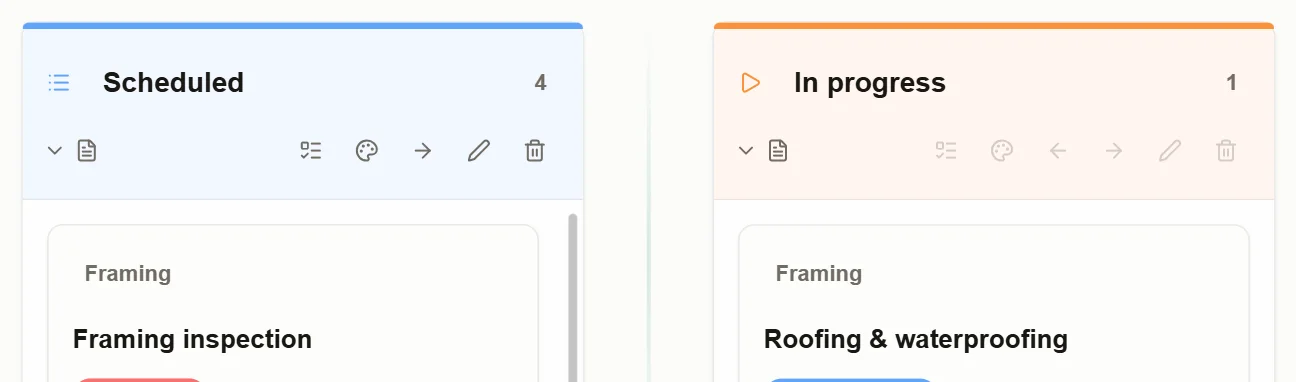
A newly created board only has two columns: 'Unplaced' and 'Completed'. Press the '+' button between columns to insert your own stages, such as 'Design', 'In Progress', or 'Review'. The column header gives you the following options:
Column Notes (Rules per Stage)
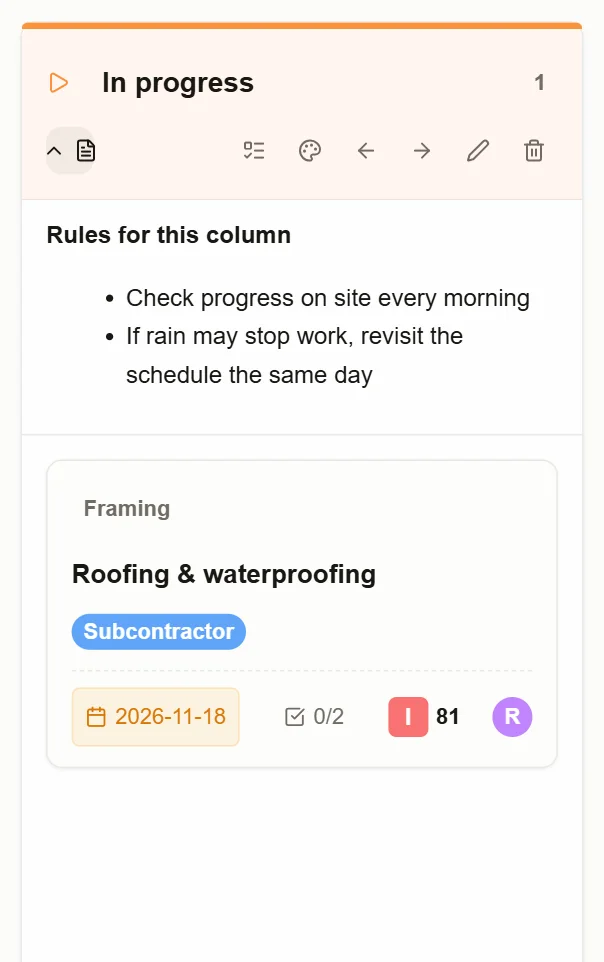
The note icon in the column header lets you record how work should proceed at that stage and what the criteria are. Keeping agreements such as 'reviews always require two people' or 'finalize the estimate before moving a card here' visible on screen keeps your process consistent even when the person in charge changes.
2. Managing Progress with Cards
Each card is one task. Moving a card is itself the act of recording progress.
Moving Cards Between Stages
Drag and drop a card onto the target column to switch that task's current stage. If you have many columns, hold the card near the left or right edge of the screen and the board scrolls horizontally on its own. You can also drag an empty area of the board to pan the whole view. Zoom the board between 40% and 150% with Ctrl+mouse wheel or the zoom buttons at the bottom right to take in even a board with many columns.
What a Card Shows
Each card gathers the information you need to make a decision: assignee, tags, due date, and how many ToDos are done. Due dates are color-coded as 'Overdue', 'Due today', or 'Due soon', so tasks at risk stand out. Click a card to open the details panel on the right, where you can edit the same content as in the Gantt chart (Details, ToDos, Memo, and Cost).
Default ToDos (Routine Work per Stage)
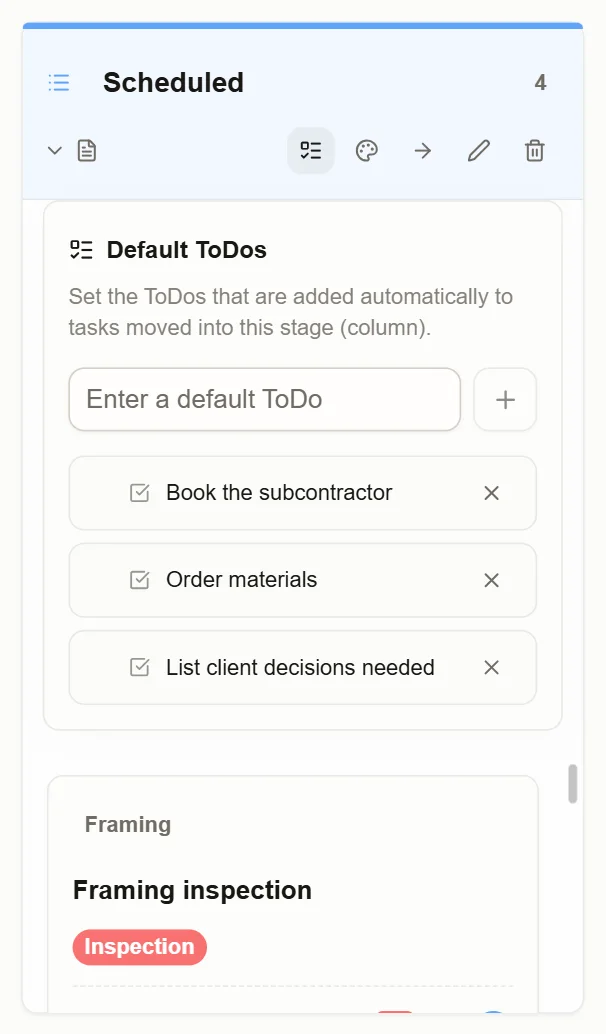
Press the checklist icon in a column header to open the 'Default ToDos' settings. Items you register here are created automatically as that task's ToDos whenever a card enters the column. Registering steps you repeat every time, such as 'request a review' or 'send the acceptance form', means nobody has to remember the procedure and nothing gets skipped. Items can be reordered by dragging.
ToDos Drive the Progress Rate
Each click on the circle to the left of a ToDo advances it: not started → in progress → completed. Completing it raises the task's progress rate accordingly (when 'Auto-calculate progress from ToDos' is on in the details panel). You never have to retype a percentage, and working on the Kanban board alone keeps the Gantt chart's progress bars up to date.
Checks Before Moving to 'Completed'
Ploto prevents cards from reaching 'Completed' before the work really is. If child tasks are unfinished, ToDos remain, or progress has not reached 100%, the move is blocked and the reason is shown.
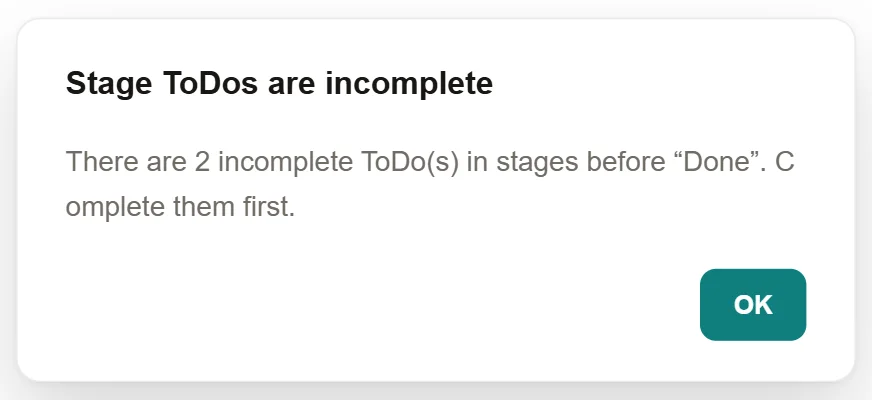
Skipped stages are detected too. If an earlier stage still has incomplete ToDos, a card cannot move ahead, and Ploto asks you to complete them first. Conversely, if you start a task from a later stage, Ploto asks whether the default ToDos from the earlier stages should be registered as already done.
3. Narrowing Down to What Matters
Since a single board can hold tasks from multiple projects, filtering is essential in daily use.
Filters and Search
The bar at the top of the board lets you filter by project, assignee, and tag, and search task names by keyword. This makes it easy to view only your own workload or follow just one project's flow. Filter settings are saved per board, so reopening the file resumes exactly where you left off.

Working Together with the Gantt Chart
The Kanban board and the Gantt chart are just two views of the same tasks, so editing either one updates both. Double-click the header row of the grid on the left of the Gantt chart and check 'Kanban' to show each task's current stage as a column in the schedule table — handy when you want dates and stages side by side.