
1. Basic Operations
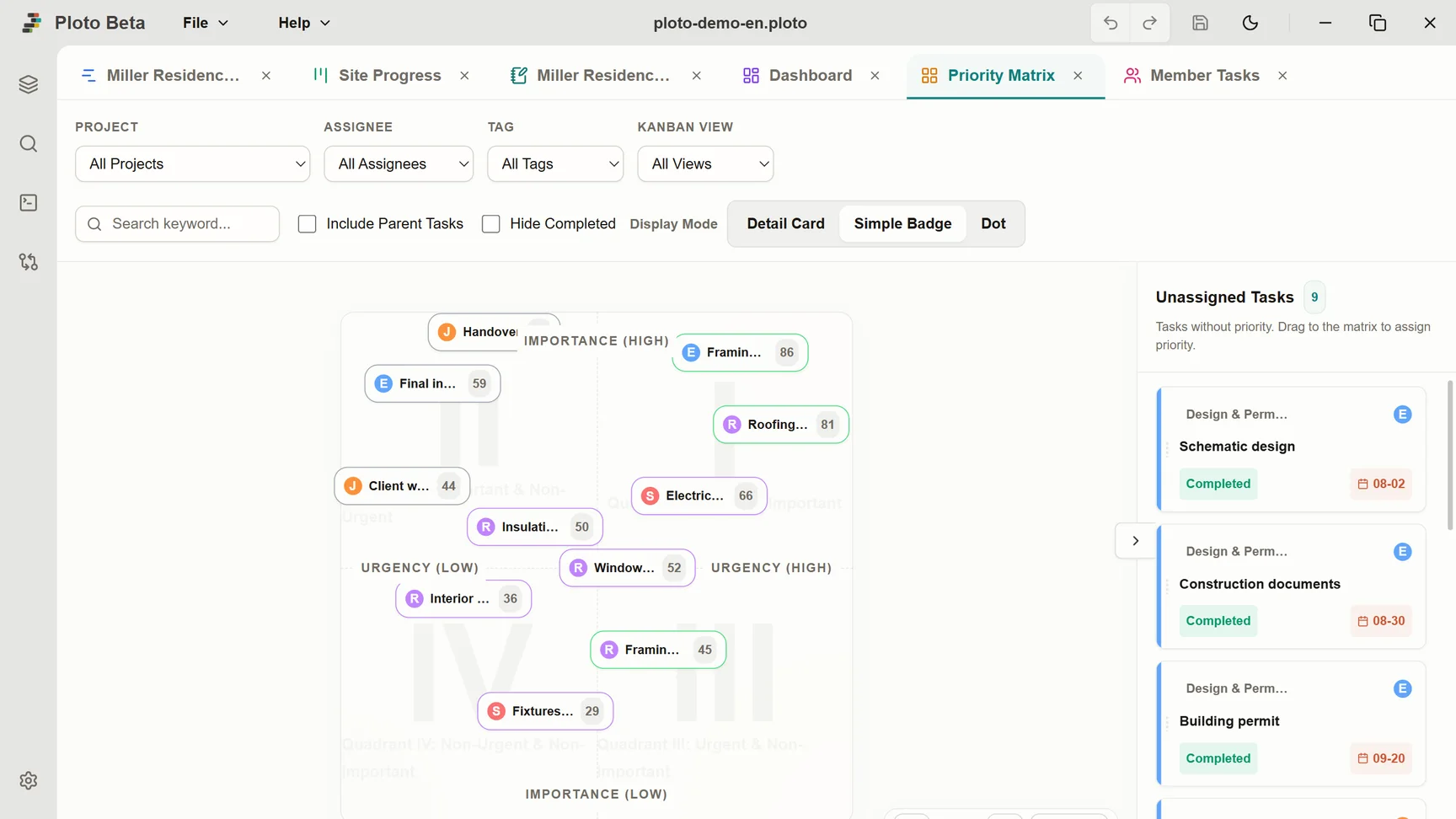
Add the view and place your tasks on the plane — that alone sorts out your priorities.
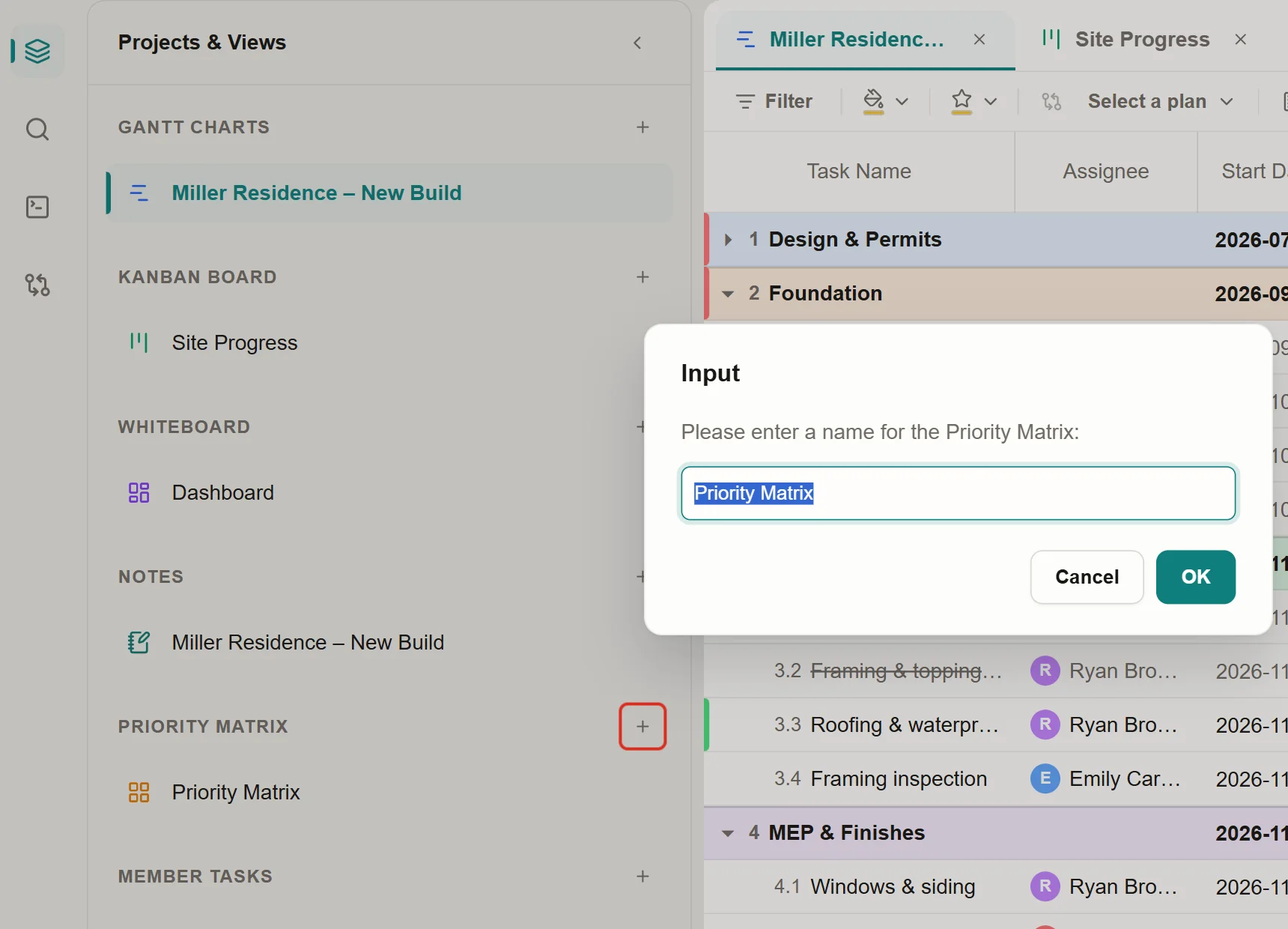
Adding a Priority Matrix
Click the 'Projects & Views' button on the left sidebar, then press the '+' button next to 'Priority Matrix'. Enter a name to confirm, and a new tab appears at the top of the screen with the matrix open.
*Creating a priority matrix is a Pro feature. Existing matrices can be viewed and edited in the free version.
What the Four Quadrants Mean
Urgency increases toward the right on the horizontal axis, and importance increases upward on the vertical axis. The plane is divided into four quadrants, each calling for a different response.
Placing and Unplacing Tasks
The 'Unassigned Tasks' panel on the right lists tasks with no priority set yet. Drag a card from there to any position on the plane to place it. You can keep dragging it afterwards to fine-tune the position, which helps when deciding how to treat tasks near a quadrant boundary. To undo a placement, drag the card back into the 'Unassigned Tasks' panel. The panel can be opened and closed with the button on its edge.
Priority Score
A priority score from 0 to 100 is calculated automatically from where you place a task. The score weights urgency at 40% and importance at 60%, so between two equally urgent tasks the more important one scores higher. It is a deliberate counterweight to letting deadlines dictate your judgment.
Setting Priority from the Details Panel
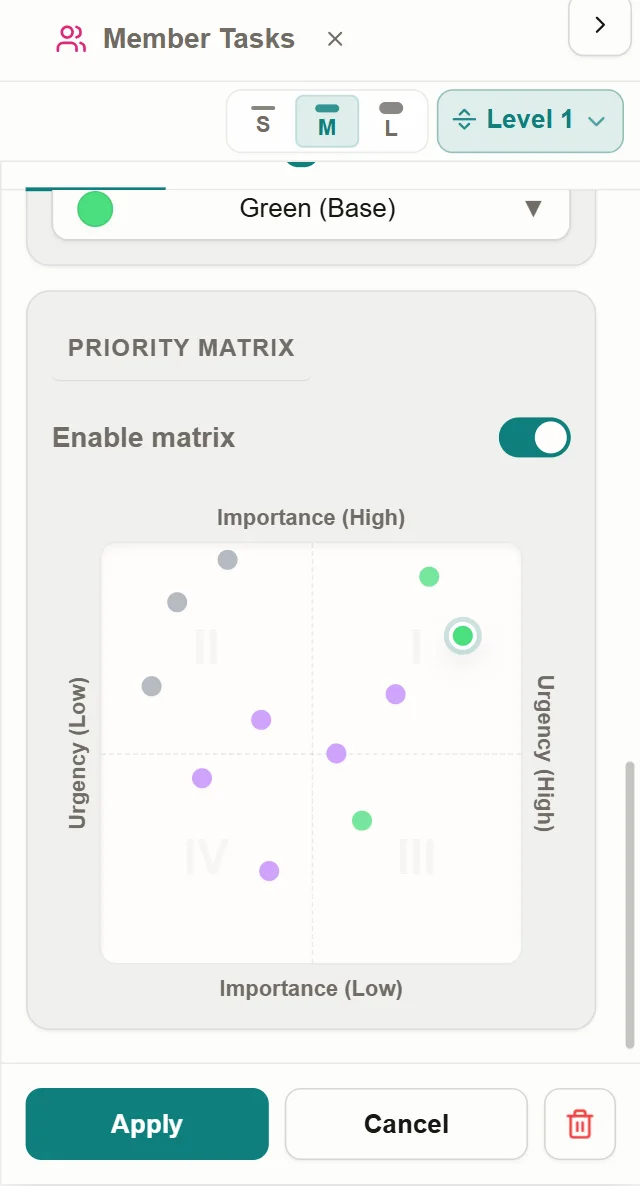
You can also set priority without opening the matrix view. Turn on 'Enable matrix' in the Details tab and a small plane appears; wherever you click becomes that task's urgency and importance (it starts at the center). This lets you decide priority on the spot while creating tasks in the Gantt chart.
2. Adjusting the Display and Filtering
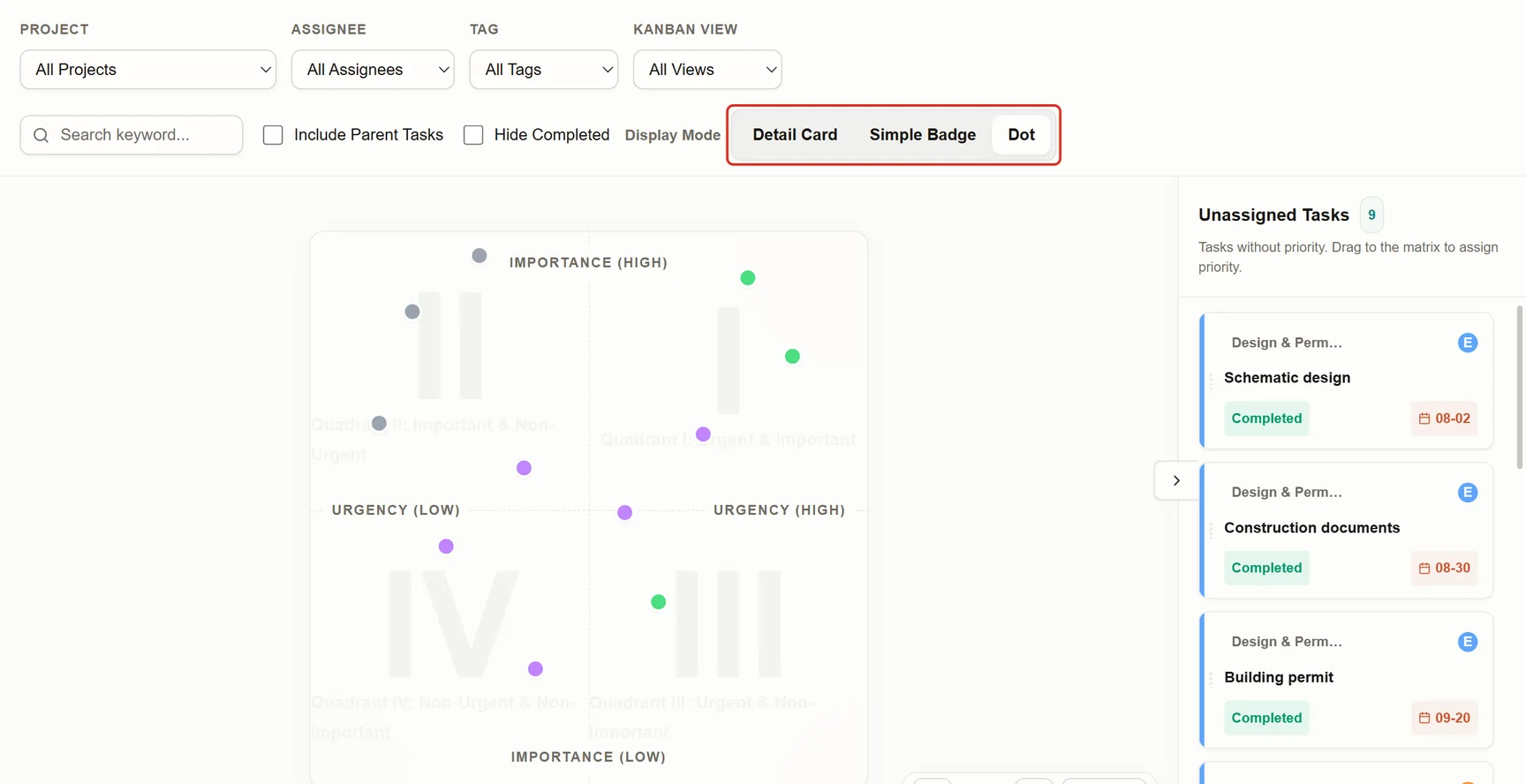
Switch how tasks are drawn so the plane stays readable as the number of tasks grows.
Display Modes (Detailed Card / Compact Badge / Dot)
'Detail Card' shows assignees and due dates, which suits reviewing a small number of tasks. When cards overlap and become hard to read, switch to 'Simple Badge' to show names only, or to 'Dot' to take in the overall distribution at a glance. You can open the details panel by clicking a task in any mode.
Filtering and Zoom
Besides filtering by project, assignee, tag, and keyword, you can exclude finished work with 'Hide completed' or bring higher-level tasks into scope with 'Include parent tasks'. Selecting a specific Kanban view shows only the tasks currently on that board's stages. The plane can be zoomed in and out so you can inspect crowded areas. These settings are also saved per view.
